Have government issued photo ID ready (licence or passport)
Have accessed your Janison account and created a password
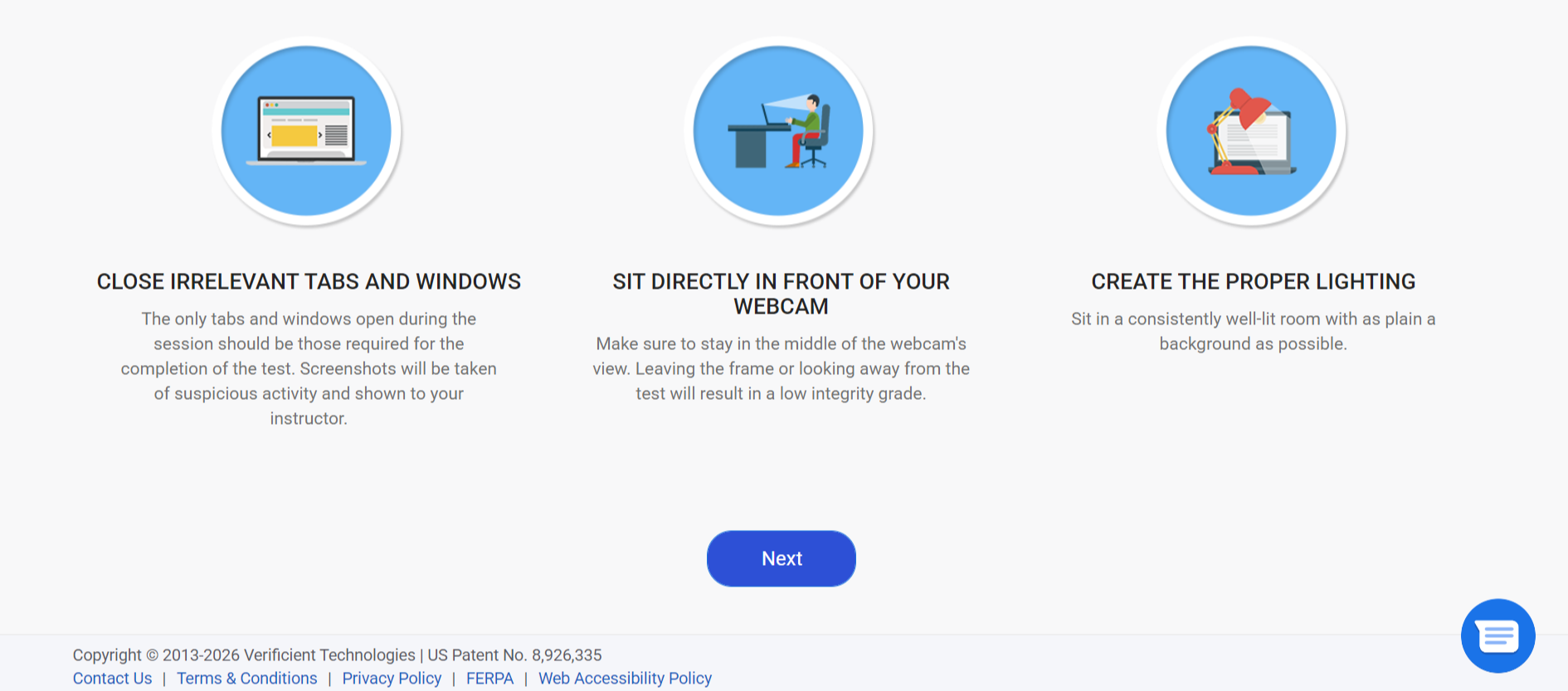
Quiet and well‑lit environment
Stable internet connection
No prohibited materials nearby
Completed onboarding
2. Before the exam
Ensure a stable internet connection.
Use a computer with webcam and microphone.
Have valid login credentials for Janison Insights by accessing the link provided in the BPC Notification to Complete an Online Exam and setting your password.
3. Accessing and completing onboarding test
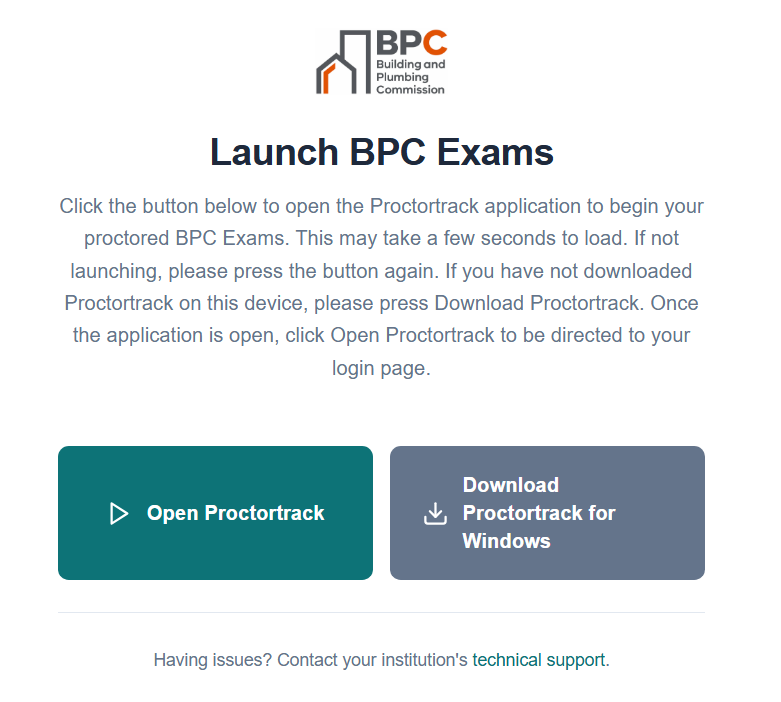
Once you have set your password and logged in, you will see the page below.
For first-time Proctortrack users, select ‘Download Proctortrack’ and install the application.
If you have already downloaded Proctortrack select ‘Open Proctortrack’ to launch the application.
You can return to this page at any time and launch BPC Exams again by going to exams.bpc.vic.gov.au, entering the username and password you have set up, and selecting ‘Open Proctortrack’.
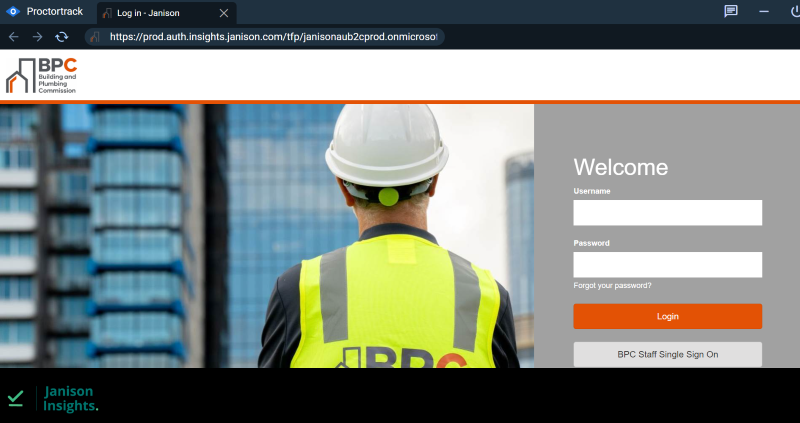
After Proctortrack opens, you will be redirected to the Janison exam portal, where you need to log in using the username provided by the BPC and the password you created.
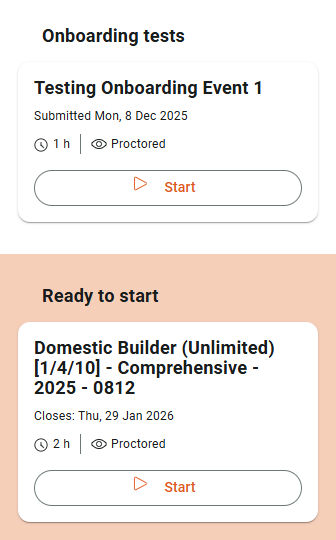
After logging in, you will see your onboarding test and exam(s). Note: You will not be able to start your exam until you have completed onboarding.
Select 'Start' to be redirected to the Proctortrack website.
Note for Macbooks only: If prompted by below text box, select 'Allow'.
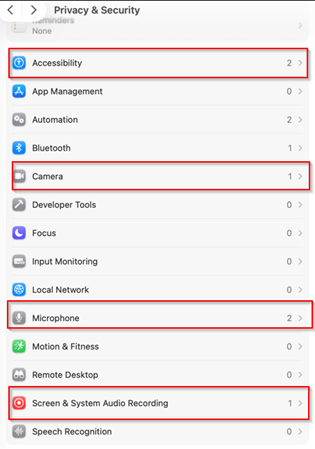
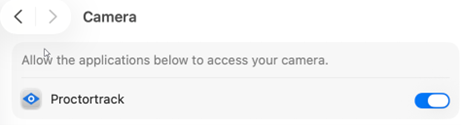
Note for Macbooks only: You will need to allow the Proctortrack permission that prompts automatically or go to the privacy and settings menu in your Macbook.
For example, Camera, and for each of the other highlighted settings:
Accessibility
Microphone
Screen & System Audio Recording.
3a. Onboarding identity verification, system and environment check
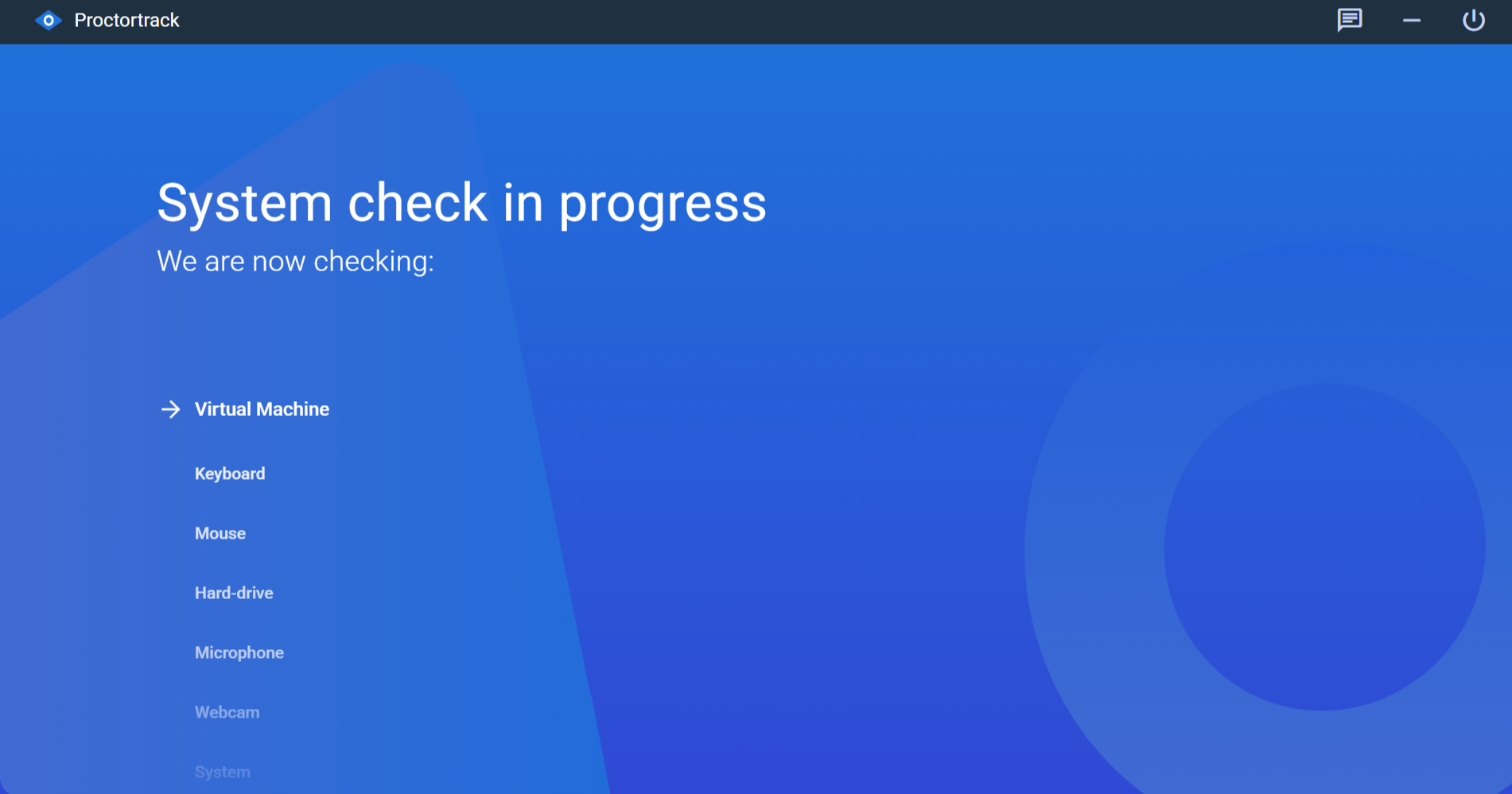
Proctortrack will need to complete a system check, select microphone, select webcam, and force shutdown of all background applications.
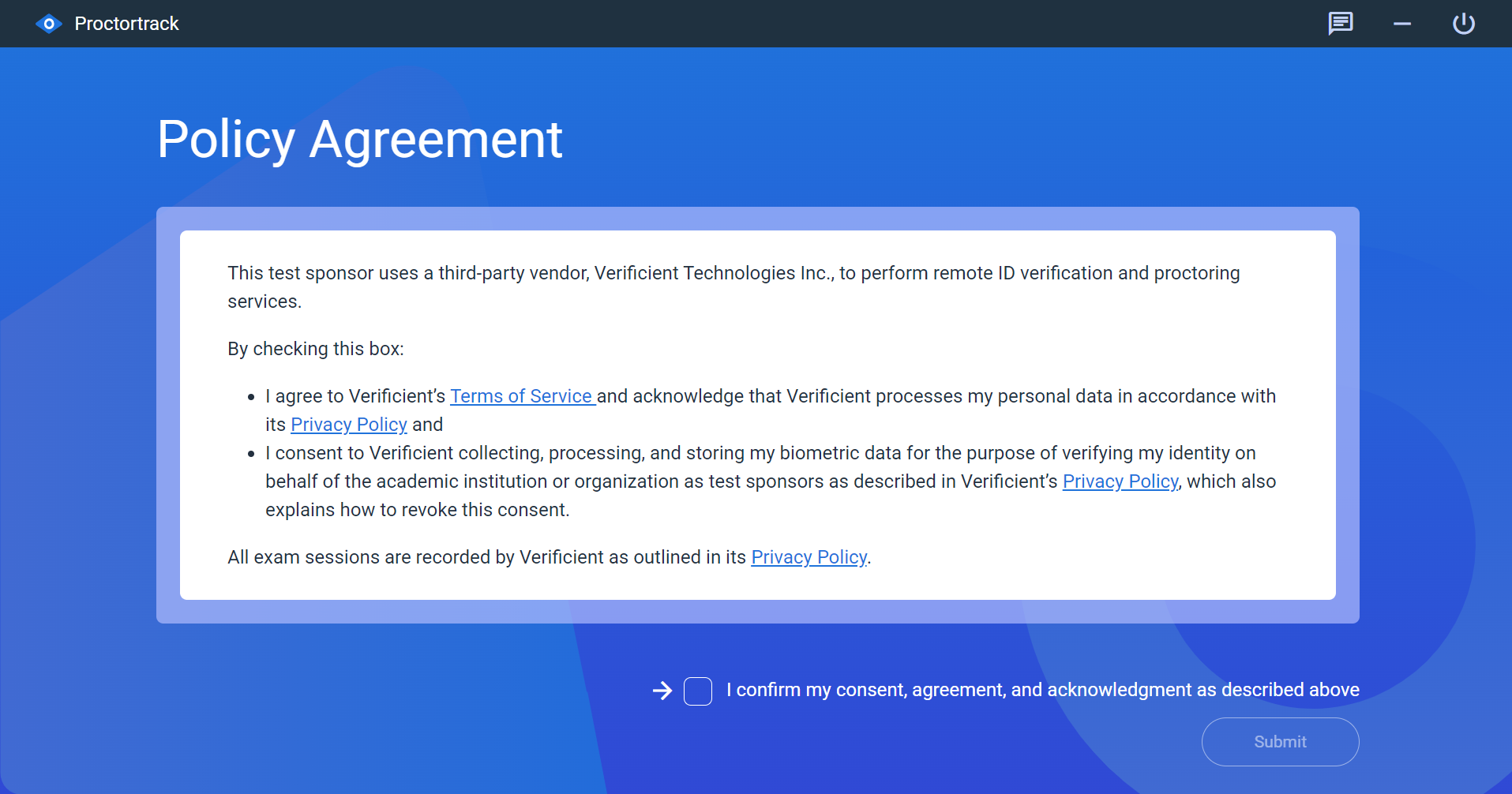
Complete ID verification
face scan
photo id
Complete required environmental scans:
desk
room
After completion of onboarding, you can exit the Proctortrack application by selecting the top-right shutdown icon.
You will be notified via email when your onboarding check is approved.
If your onboarding check is rejected, you will receive an email specifying any required follow-up.
4. Starting the exam - after onboarding has been approved
When the identity verification and environmental check are completed, and your onboarding is confirmed, you can start your Proctored exam.
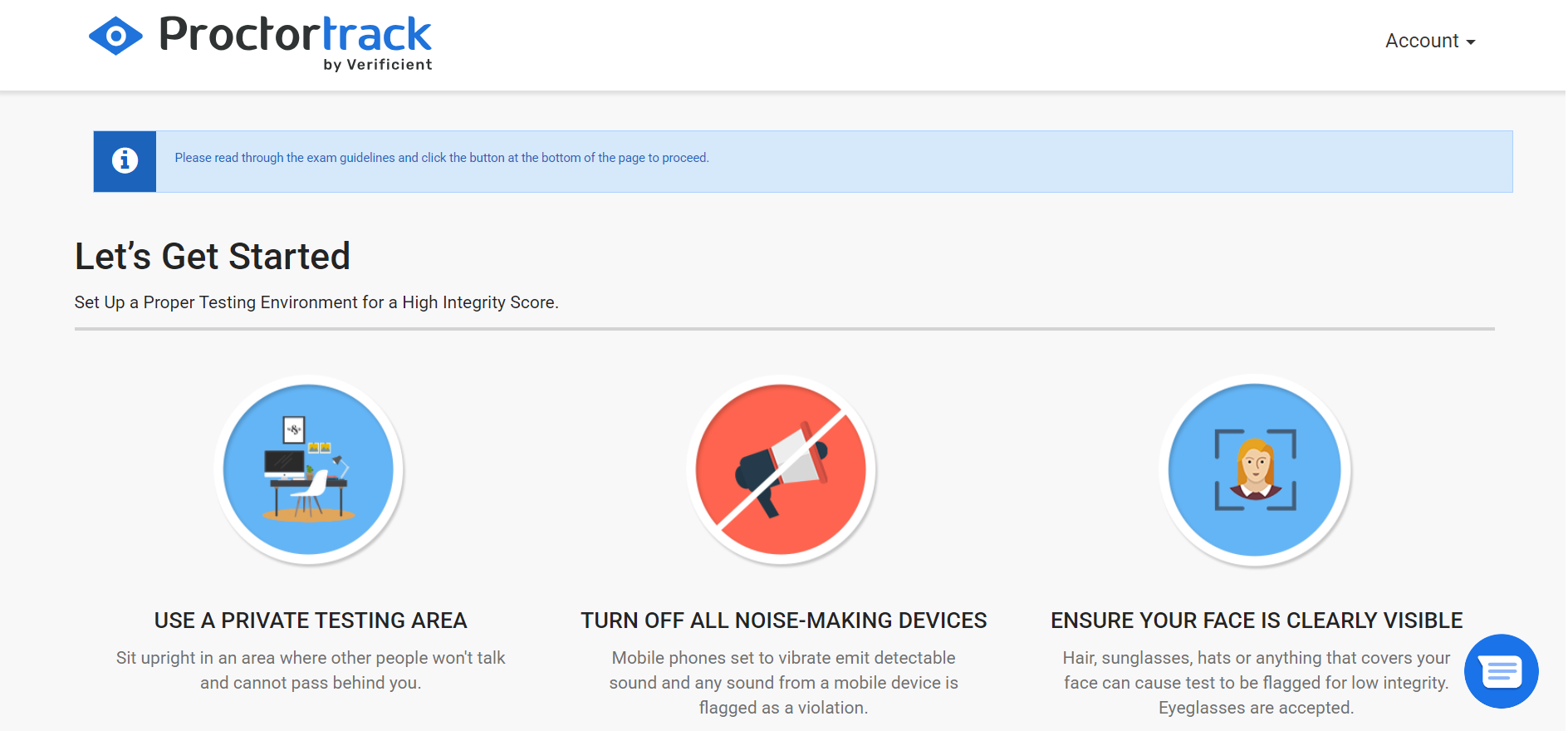
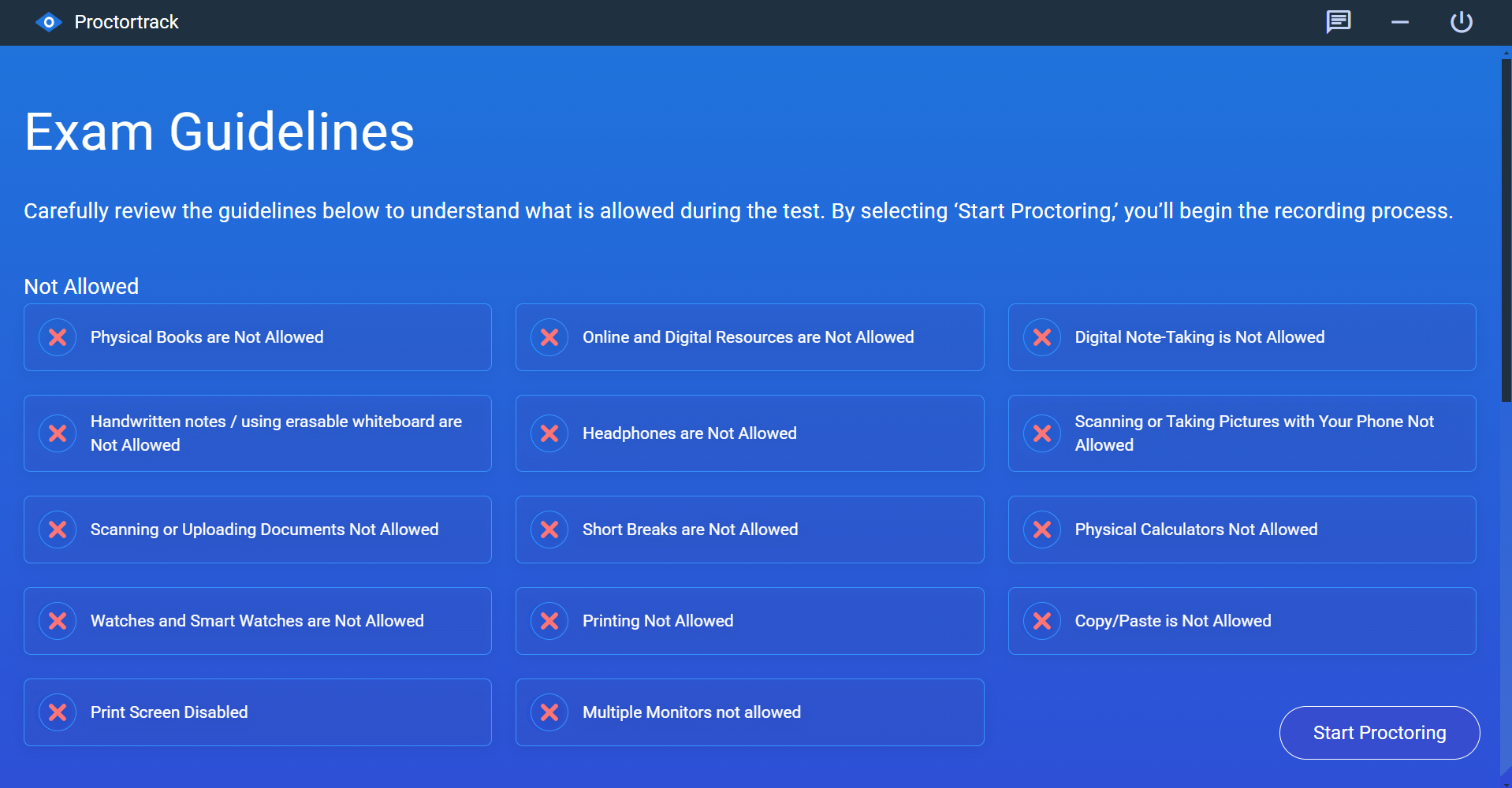
Once you have reviewed the exam guidelines, select 'Start Proctoring'.
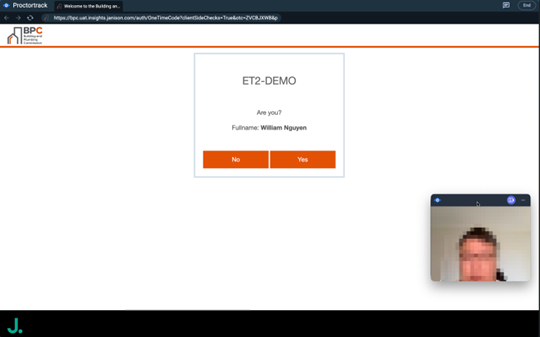
Select 'Yes' to enter the exam.
5. During the exam
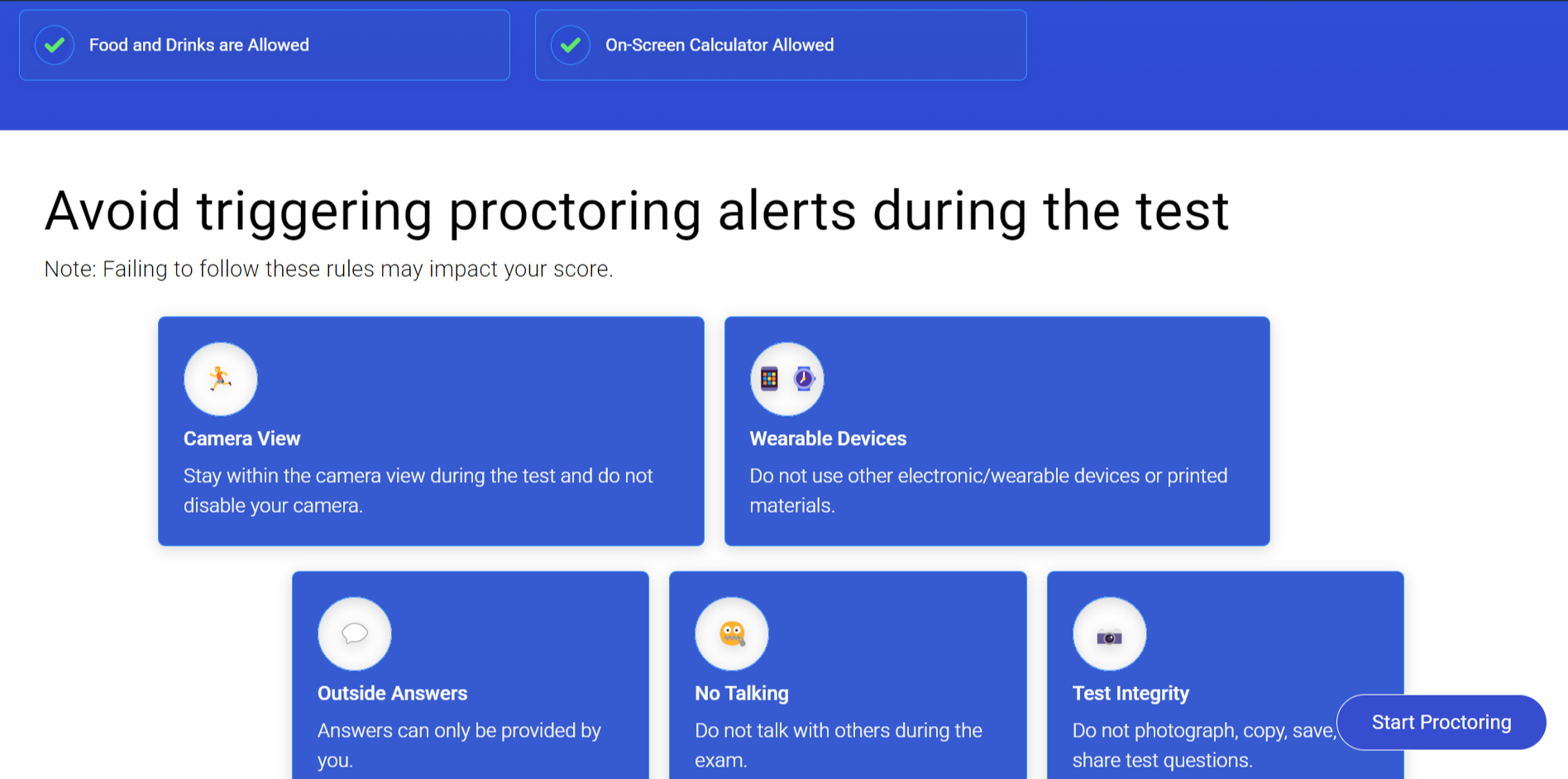
Always remain in view of your camera. (You may move/minimise the small Proctoring window as required).
You will not be able to go to any other websites. All materials for your assessment are available within the test.
Switching to any other external applications is not permitted.
Follow all BPC exam rules.
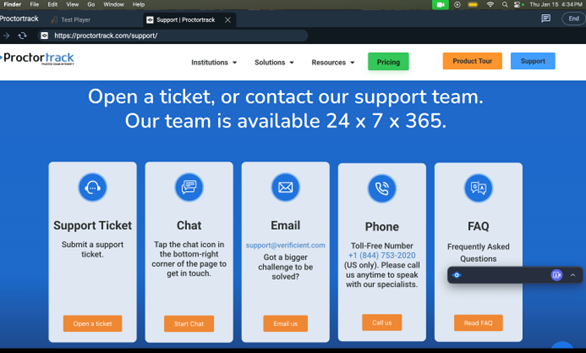
You may use the chat function by selecting the chat button on the top right-hand side for support using Proctortrack. We recommend that you only use the chat and FAQ options.
6. Completing the exam and post exam process
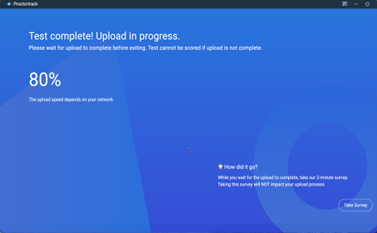
Submit your exam after completion by selecting 'Submit and Finish' on screen. Proctortrack will automatically close and upload all the proctored exam data.
No exam results are shown. You will be advised of your result via email from the BPC.
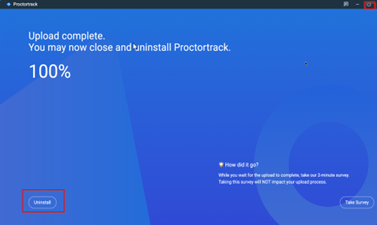
After upload, you can exit the Proctortrack application by selecting the top-right shutdown icon, or alternatively uninstall the entire application.
7. Troubleshooting
If the Proctortrack app won’t launch, check that you have installed the Proctortrack software and/or disabled antivirus (if any).
If the camera or microphone fails, grant permissions and restart.
Always install the application with administrator permissions - using an admin account of your device.






 Laptop with webcam and microphone